

















Tell us what you think
Please help us to improve this app. Send any comments and questions, or report any problems, to andrew.snowball@emap.com
Navigation
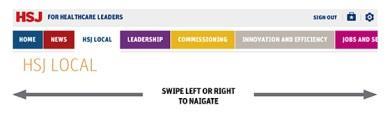
To browse sections, scroll the main navigation bar at the top of the screen from left to right. Touch a section name to select it.
Each section contains shows a number of stories listed under various categories. Grey pips indicate you can swipe the list left or right to see more stories.
Touch a story’s headline or picture to read it.
Stories
When viewing a story, scroll up or down to read the whole thing and any comments.
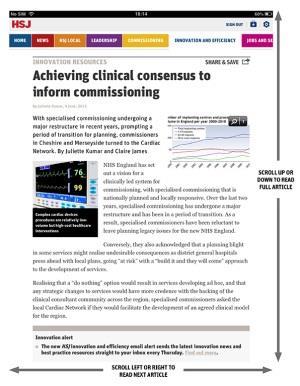
To read the next story in the section, simply swipe left or right. To return to the section page - or to visit a different one - touch its name in the navigation menu.

To see a picture in full screen tap the magnifying glass icon.
Save and share
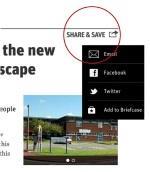
To send a link to a story by email, or to share it on Twitter or Facebook, touch “Share & save” at the top right of the story and choose the desired option from the drop-down menu. To save a story to read later, open the Share & save menu then select “Add to Briefcase”.
To see and edit your saved stories, tap on the briefcase icon at the top of the screen.
Settings
Use the Settings menu to change the frequency your app checks for new content. By selecting “always” it will check every time you launch the app - but loading times will be longer. If you select “once a day” or “once an hour” the app load quicker if you have already run it in that time period.
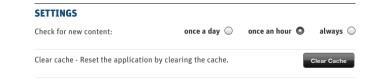
Tap “Clear Cache” to force the app to reload.